To understand how VPNs work, you must understand how addressing and routing is affected by the creation of remote access VPNs and router-to-router VPNs. A VPN connection creates a virtual interface that must be assigned a proper IP address, and routes must be changed or added to ensure that the proper traffic is sent across the secure VPN connection instead of the shared or public transit internetwork.
Remote Access VPN Connections
For remote access VPN connections, a computer creates a remote access connection to a VPN server. During the connection process the VPN server assigns an IP address for the remote access VPN client and changes the default route on the remote client so that default route traffic is sent over the virtual interface.
IP Addresses and the Dial-Up VPN Client
For dial-up VPN clients who connect to the Internet before creating a VPN connection with a VPN server on the Internet, two IP addresses are allocated:
- When creating the PPP connection, IPCP negotiation with the ISP NAS assigns a public IP address.
- When creating the VPN connection, IPCP negotiation with the VPN server assigns an intranet IP address. The IP address allocated by the VPN server can be a public IP address or private IP address, depending on whether your organization is implementing public or private addressing on its intranet.
In either case, the IP address allocated to the VPN client must be reachable by hosts on the intranet and vice versa. The VPN server must have appropriate entries in its routing table to reach all the hosts on the intranet and the routers of the intranet must have the appropriate entries in their routing tables to reach the VPN clients.
The tunneled data sent through the VPN is addressed from the VPN client's VPN server-allocated address to an intranet address. The outer IP header is addressed between the ISP-allocated IP address of the VPN client and the public address of the VPN server. Because the routers on the Internet only process the outer IP header, the Internet routers forward the tunneled data to the VPN server's public IP address.
An example of dial-up client addressing is shown in Figure 9.14 where the organization uses private addresses on the intranet, and the tunneled data is an IP datagram.

Default Routes and Dial-Up Clients
When a typical dial-up client dials the ISP, it receives a public IP address from the ISP NAS. A default gateway address is not allocated as part of the IPCP negotiation process. Therefore, in order to reach all Internet addresses, the dial-up client adds a default route to its routing table using the dial-up interface connected to the ISP. As a result, the client can forward the IP datagrams to the ISP NAS from where they are routed to its Internet location.
For dial-up clients with no other TCP/IP interfaces, this is the wanted behavior. However, this behavior can cause confusion for dial-up clients that have an existing LAN-based connection to an intranet. In this scenario, a default route already exists pointing to the local intranet router. When the dial-up client creates a connection with their ISP, the original default route remains in the routing table but is changed to have a higher metric. A new default route is added with a lower metric using the ISP connection.
As a result, the intranet locations that are not on the dial-up client's directly attached network are not reachable for the duration of the connection to the ISP. If the new default route is not created, all intranet locations are reachable, but Internet locations are not.
A Windows 2000-based dial-up client creates the default route by default.
To prevent the default route from being created
- In the properties of the TCP/IP protocol of the dial-up connection object, in the Advanced TCP/IP Settings dialog box, click the General tab, and then clear the Use default gateway on remote network check box.
To achieve connectivity to both intranet and Internet locations while the ISP connection is active, leave the Use default gateway on remote network option selected and add the routes of the intranet to the routing table of the dial-up client. The intranet routes can be added through static persistent routes using the route utility, or, if Routing Information Protocol (RIP) version 1 is being used as the intranet routing protocol, you can use the Route Listening Service to listen to RIP version 1 routing protocol traffic and dynamically add intranet routes. When connected to the ISP, all intranet locations are reachable using the intranet routes and all Internet locations are reachable using the default route.
Default Routes and VPNs over the Internet
When the dial-up client calls the ISP, it adds a default route using the connection to the ISP as shown in Figure 9.15. At this point, it can reach all Internet addresses through the router at the ISP NAS.
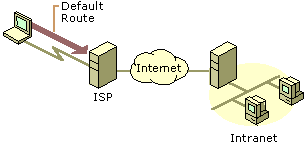
When the VPN client creates the VPN connection, another default route and a host route to the IP address of the tunnel server are added, as illustrated in Figure 9.16. The previous default route is saved but now has a higher metric. Adding the new default route means that all Internet locations except the IP address of the tunnel server are not reachable for the duration of the VPN connection.

Just as in the case of a dial-up client connecting to the Internet, when a dial-up VPN client using voluntary tunneling creates a VPN connection to a private intranet across the Internet, one of the following occurs:
- Internet locations are reachable and intranet locations are not reachable when the VPN connection is not active.
- Intranet locations are reachable and Internet locations are not reachable when the VPN connection is active.
For most Internet-connected VPN clients, this behavior does not represent a problem because they are typically engaged in either intranet or Internet communication, not both.
For VPN clients who want concurrent access to intranet and Internet resources when the VPN is connected, the solution depends on the nature of the IP addressing in the intranet. In all cases, configure the VPN connection object so that it does not add a default gateway. When the VPN connection is created, the default route remains pointed to the ISP NAS, allowing access to all Internet addresses.
Based on the type of intranet addressing you use, enable concurrent access to intranet and Internet resources as follows:
Public Addresses Add static persistent routes for the public network IDs of the intranet using the IP address of the VPN server's virtual interface as the gateway IP address.
Private Addresses Add static persistent routes for the private network IDs of the intranet using the IP address of the VPN server's virtual interface as the gateway IP address.
Overlapping or Illegal Addresses If the intranet is using overlapping or illegal addresses (IP network IDs that are not private and have not been registered by Internet Network Information Center [InterNIC] or obtained from an ISP), those IP addresses might be duplicated by public addresses on the Internet. If static persistent routes are added on the VPN client for the overlapping network IDs of the intranet, the locations on the Internet for the overlapping addresses are not reachable.
In each of these cases, static persistent routes for the network IDs of the intranet need to be added to the VPN client. When the persistent routes are added, they are saved in the registry. With Windows NT 4.0 Service Pack 3 and later and with Windows 2000, the persistent routes are not actually added to the IP routing table (and are not visible with the route print command at the Windows 2000 command prompt) until the IP address of the gateway is reachable. The IP address of the gateway becomes reachable when the VPN connection is made.
For each route, type the following route utility syntax at a Windows 2000 command prompt:
ROUTE ADD
The gateway IP address in the route commands for each intranet route is the IP address assigned to the VPN server's virtual interface, not the IP address of the VPN server's Internet interface.
You can determine the IP address of the VPN server's virtual interface from the IP address of the Internal interface under IP Routing - General in the Routing and Remote Access snap-in. If you use DHCP to obtain IP addresses for dial-up networking and VPN clients, the IP address of the VPN server's virtual interface is the first IP address obtained when requesting DHCP addresses. If you have configured a static IP address pool, the IP address of the VPN server's virtual interface is the first IP address in the static IP address pool. You can also determine the IP address of the VPN server's virtual interface by double-clicking the virtual private networking connection object when the VPN connection is active. In the resulting Status dialog box, click the Details tab.

Caution
For all of these cases, you must add the routes very carefully to ensure that the private traffic to the intranet is forwarded using the VPN connection and not the PPP connection to the ISP. If the wrong routes are added, the traffic that you intend to forward across the VPN in an encrypted form is instead sent unencrypted across the Internet. For example, if your intranet is using the public network ID 207.46.130.0/24 (subnet mask 255.255.255.0), and you mistakenly add a persistent static route for 207.46.131.0/24, all traffic to the intranet network 207.46.130.0/24 is forwarded across the Internet in plaintext, rather than being encrypted and sent across the VPN connection.
Router-to-Router VPN Connections
For router-to-router VPNs, the routing interface used to forward packets is a demand-dial interface configured as follows:
- On the General tab, type the host name or IP address of the VPN server.
- On the Security tab, select either Secure my password and data or Custom. If you select Custom, you must also select the appropriate encryption and authentication options.
- On the Networking tab, select the appropriate server type and protocols to be routed. If you set the server type as Automatic, an L2TP over IPSec connection is attempted first, and then a PPTP connection.
- Under Interface credentials, type the user name, password, and domain name used to verify the calling router.
The creation of demand-dial interfaces is automated with the Demand-Dial Interface Wizard.
The names of the demand-dial interfaces and the calling router credentials may need to be properly matched to ensure a router-to-router VPN connection. For more information, see "Demand-Dial Routing" in this book.
Temporary vs. Persistent Router-to-Router VPNs
Router-to-router VPN connections can be either temporary or persistent.
- Temporary router-to-router VPN connections are made when there are packets to be routed across the VPN demand-dial interface and terminated after a specified amount of idle time. Idle time is configured on both the VPN client (the calling router) and the VPN server (the called router). The default idle time for demand-dial interfaces on the VPN client is unlimited. The default idle time for VPN connections on the VPN server is 20 minutes. Both idle times are configurable. Use temporary router-to-router VPN connections for branch offices who use dial-up connections to their local ISPs.
- Persistent router-to-router VPN connections are made when the router is started and remain connected regardless of the traffic being sent. If the VPN connection is terminated, it is automatically attempted again. Use persistent router-to-router VPN connections to connect offices that have permanent connections to the Internet.
To configure either a persistent or temporary connection
- In the Routing and Remote Access snap-in, select Routing Interfaces.
- Right-click the demand-dial interface object, and then select Properties.
- On the Options tab, under Connection Type, select either Demand dial or Persistent.
VPNs Using Dial-Up ISP Connections
When both the VPN server and the VPN client are directly connected to the Internet using a permanent WAN link such as T1 or Frame Relay, the VPN connection can be persistent and available 24 hours a day. However, when a permanent WAN link is not possible or practical, you can configure an on-demand router-to-router VPN connection using a dial-up ISP.
An on-demand router-to-router VPN connection using a dial-up ISP connection consists of two demand-dial interfaces:
- A demand-dial interface to dial-in to a local ISP.
- A demand-dial interface for the router-to-router VPN connection.
An on-demand router-to-router VPN connection is automatically established when traffic to be forwarded across the VPN connection is received by the branch office router. For example, when receiving a packet to be routed to the corporate office, the branch office router first uses a dial-up link to connect to a local ISP. When the Internet connection is made, the branch office router, the VPN client, creates a router-to-router VPN connection with the corporate office router, the VPN server.
To configure an on-demand VPN connection at the branch office router
- Create a demand-dial interface for the Internet connection configured for the appropriate equipment (a modem or ISDN device), the phone number of the local ISP, and the user name and password used to gain Internet access.
- Create a demand-dial interface for the router-to-router VPN connection with the corporate office router configured for PPTP or L2TP, the IP address or host name of the corporate office VPN server's interface on the Internet, and a user name and password that can be verified by the VPN server. The user name must match the name of a demand-dial interface on the corporate office VPN server.
- Create a static host route for the IP address of the VPN server's Internet interface that uses the demand-dial interface used to dial the local ISP.
- Create a static route or routes for the IP network IDs of the corporate intranet that uses the VPN demand-dial interface.
To configure the corporate office router
- Create a demand-dial interface for the VPN connection with the branch office configured for a VPN device (a PPTP or L2TP port). The demand-dial interface must have the same name as the user name in the authentication credential that is used by the branch office router to create the VPN connection.
- Create a static route or routes for the IP network IDs of the branch office that uses the VPN demand-dial interface.
The router-to-router VPN connection is automatically initiated by the branch office router through the following process:
- Packets sent to a corporate hub network location from a user in the branch office are forwarded by the user to the branch office router.
- The branch office router checks its routing table and finds a route to the corporate intranet network ID, which uses the VPN demand-dial interface.
- The branch office router checks the state of the VPN demand-dial interface and finds it is in a disconnected state.
- The branch office router retrieves the configuration of the VPN demand-dial interface.
- Based on the VPN demand-dial interface configuration, the branch office router attempts to initialize a router-to-router VPN connection at the IP address of the VPN server on the Internet.
- To establish a VPN, either a TCP connection (by using PPTP) or an IPSec negotiation must be established with the VPN server. The VPN establishment packet is created.
- To forward the VPN establishment packet to the corporate office router, the branch office router checks its routing table and finds the host route using the ISP demand-dial interface.
- The branch office router checks the state of the ISP demand-dial interface and finds it is in a disconnected state.
- The branch office router retrieves the configuration of the ISP demand-dial interface.
- Based on the ISP demand-dial interface configuration, the branch office router uses its modem or ISDN adapter to dial and establish a connection with its local ISP.
- When the ISP connection is made, the VPN establishment packet is sent by the branch office router to the corporate office router.
- A VPN is negotiated between the branch office router and the corporate office router. As part of the negotiation, the branch office router sends authentication credentials that are verified by the corporate office router.
- The corporate office router checks its demand-dial interfaces and finds one that matches the user name sent during authentication and changes the interface to a connected state.
- The branch office router forwards the packet across the VPN and the VPN server forwards the packet to the appropriate intranet location.
Static vs. Dynamic Routing
When the demand-dial interfaces are created and the choice has been made between temporary and persistent connections, you must choose one of the following methods for adding routing information to the routing table:
- For temporary connections, you can manually add the appropriate static routes to reach network IDs in the other offices. Manual configuration of static routes is appropriate for small implementations with a small number of routes.
- For temporary connections, you can use auto-static updates to periodically update the static routes that are available across the router-to-router VPN connection. Auto-static routes work well for larger implementations with a large amount of routing information. For more information about auto-static updates, see "Demand-Dial Routing" in this book.
- For persistent connections, run the appropriate routing protocols over the router-to-router VPN connection treating the VPN connection as a point-to-point link.
Note
Unlike demand-dial routing using direct physical connections, you cannot use a default IP route configured for the VPN demand-dial interface to summarize all the intranet routes available across the VPN. Because the router is connected to the Internet, you must use the default route to summarize all the routes of the Internet and configure it to use the Internet interface.
Pre-shared Key Authentication for L2TP over IPSec Router-to-Router VPN Connections
By default, both the L2TP client and L2TP server for Windows 2000 are pre-configured for certificate-based IPSec authentication. When you make an L2TP over IPSec connection, an IPSec policy is automatically created to specify that the Internet Key Exchange (IKE) will use certificate-based authentication during the negotiation of security settings for L2TP. This means that both the L2TP client and L2TP server must have a computer certificate (also known as a machine certificate) installed before a successful L2TP over IPSec connection can be established. Both computer certificates must either be from the same certificate authority (CA), or the root certificate of each computer's CA must be installed as a trusted root certificate authority in each other's trusted root certificate store. For more information about IPSec, see "Internet Protocol Security" in the TCP/IP Core Networking Guide.
In some cases, a certificate-based IPSec authentication method is not desired for L2TP-based router-to-router VPN connections. For example, if you have a small organization and do not want to deploy a certificate infrastructure, or you are connecting to routers that do not support certificate-based IPSec authentication. In these cases, you can manually configure IPSec policy to use pre-shared keys when creating router-to-router VPN connections. This pre-shared authentication key acts like a simple password in the IKE negotiation, if both sides can prove they know the same password, then they trust each other and will continue to negotiate private, symmetric encryption keys, and specific security settings for L2TP traffic.
Using an IKE pre-shared key is generally considered not as secure as using certificates because the IKE authentication (and implicit trust) is dependent on the key value only, which is stored in plain text format in the IPSec policy. Anyone who views the policy can see the pre-shared key value. If a malicious user views the pre-shared key, then they could configure their system to successfully establish IPSec security with your system. However, the L2TP connection requires user level authentication using a PPP authentication protocol. Therefore, a malicious user would have to know both the pre-shared key and the proper user credentials to successfully establish the L2TP over IPSec connection.
To perform pre-shared key authentication for L2TP over IPSec router-to-router VPN connections, you must change a registry setting and then configure IPSec policy settings.
To prevent the Routing and Remote Access service from automatically creating an IPSec policy for L2TP traffic, set the value of ProhibitIpSec to 1 (HKEY_LOCAL_MACHINE\SYSTEM\CurrentControlSet\Services\RasMan \Parameters). By default, ProhibitIpSec is set to 0. When ProhibitIpSec is set to 1, the encryption settings on the demand-dial interface configured on the calling router are ignored in favor of the encryption settings of the manually configured IPSec policy. The computer must be restarted for the changes to this registry setting to take effect.
Where you configure the IPSec settings depends on the following:
- If the VPN server is a stand-alone server or a member of a Windows NT 4.0 domain, then you must configure local machine IPSec policy.
- If the VPN server is a member of Windows 2000 domain, local IPSec policies are overwritten by assigned domain IPSec policies. In order to create IPSec policy that is only applied to the VPN server, create an organizational unit (OU) in the Active Directory[tm] directory service, place the VPN server computer account in the OU, and use the Group Policy to create and assign IPSec policies for the VPN server OU. The IPSec policies created for the VPN server OU will be propagated to the VPN server.
Before creating IPSec policy, you must decide whether all sites being connected will use the same pre-shared key or whether each connection will use a separate pre-shared key. This decision impacts how IPSec filter lists and policy are configured.
The same pre-shared key may be used when one administrator or company controls both L2TP tunnel endpoints.
Different pre-shared keys may be used when configuring L2TP tunnels between systems that are not under the same administrative or corporate security control. For example, one Windows 2000 VPN server may be configured to communicate to six different business partners, each of which need a different IKE pre-shared key for L2TP connections.
For example purposes, the following sections discuss the IPSec configuration required for a router that is using L2TP over IPSec pre-shared key authentication for router-to-router VPN connections between a corporate hub office in New York and two branch offices; one in Boston and one in London.
Note
If you have a Windows 2000 VPN server that is communicating to other L2TP clients or servers using the default certificate-based IPSec authentication, and you want to use IPSec pre-shared key authentication for one L2TP/IPSec tunnel, then you must include rules to use certificate authentication for those systems already using it, as well as a rule for pre-shared key authentication in the same IPSec policy.
Same Pre-shared Key for All Connections
To use the same pre-shared key for all L2TP over IPSec router-to-router VPN connections, configure the following:
- Using the Routing and Remote Access snap-in, create the appropriate demand-dial interfaces. In our example, create a demand-dial interface for the connection to the Boston branch office and a demand-dial interface to the London branch office.
- Using the IP Security Policies snap-in, create an IPSec filter action that does not allow unsecured L2TP communication.
- Create one IPSec filter list that contains filters for all the L2TP over IPSec connections using the same IKE pre-shared authentication key value. Each filter within the filter list is for a specific location. Using our example, you would configure a filter list with two filters, one filter defining the L2TP traffic to the Boston router and one filter defining the L2TP traffic to the London router.
- Create a new IPSec policy that uses a single active rule; a rule that uses the filter action that does not allow unsecured L2TP communication, the filter list for all the L2TP over IPSec connections, and a pre-shared key as the authentication method.
Creating the Filter Action
To create a filter action that does not permit unsecured L2TP communication, create a filter action with the following properties:
- On the General tab:
- Name: Secure L2TP (example)
- Description: Requires inbound negotiation. Discards clear text inbound. Forces negotiation outbound. (example)
- On the Security Methods tab:
- Select Negotiate security and add at least the High type to the list. Add additional types as needed.
- Clear the Accept unsecured communication, but always respond using IPSec and Allow unsecured with non IPSec-aware computer check boxes. Select the Session key Perfect Forward Secrecy check box if needed.
The example discussed here use the same encryption strength for all destinations. However, you may need to create filter actions specific to a destination, depending on the IPSec security capabilities of the remote system. For example, a filter action for Boston may require only 3DES encryption, whereas a filter action for London may require only DES due to cryptography export restrictions. To handle both 3DES and DES in the same filter action, include them both in the filter action security method list, putting 3DES first to make sure it is selected first when possible.
Creating the Filter List for the Same Pre-shared Key for all Connections
To configure a filter list that contains all L2TP-based router-to-router VPN connections, create a filter list with the following properties:
- Name: L2TP connections (example)
- Description: Destinations for L2TP pre-shared key connections. (example)
Then, for each destination, create a filter within the filter list with the following configuration:
- On the Addressing tab:
- Under Source Address, select A specific IP Address and type the IP address of an Internet interface of the local router. In our example, type the IP address of the New York router's Internet interface.
- Under Destination Address, select A specific IP Address and type the IP address of an Internet interface of the router on the other end of this router-to-router VPN connection. In our example, for the Boston connection, type the IP address of the Boston router's Internet interface.
- Select Mirrored.
- On the Protocol tab:
- Under Select a protocol type, select UDP.
- Under Set the IP protocol port, select From this port and type 1701, and then select To this port.
- On the Description tab:
- Under Description, type a description of this filter that describes its connection endpoint. For example, for the demand-dial connection to Boston, type the description: L2TP to Boston. This description appears in the IPSec monitor utility.
Configuring an IPSec Policy for the Same Pre-shared Key
To configure an IPSec policy that uses the same pre-shared key for all L2TP-based router-to-router VPN connections, create an IPSec policy with the following properties:
- On the General tab:
- Name: Pre-shared key L2TP Connections (example)
- Description: IPSec pre-shared key authentication for L2TP over IPSec router-to-router VPN connections. (example)
- Change Check for policy changes every and Advanced settings as needed.
- On the Rules tab:
- Clear the Default Response rule.
Add a rule with the following properties:
- On the IP Filter List tab:
- Select the IP filter list that corresponds to all L2TP connections to all branch offices. Using our example, select the IP filter list called L2TP connections.
- On the Filter Action tab:
- Select the filter action that does not allow unsecured L2TP communication. Using our example, select the filter action called Secure L2TP.
- On the Authentication Methods tab:
- Under Authentication Method preference order, configure a single method that uses the pre-shared key. Type the pre-shared key that is common between all routers to which this router is making a pre-shared key L2TP over IPSec connection. When configuring a pre-shared key, choose a key that is at least 20 characters long and is a random mixture of upper and lower case letters, numbers and punctuation characters.
- On the Tunnel Setting tab:
- Select This rule does not specify an IPSec tunnel.
- On the Connection Type tab:
- Select All network connections.
Because the filter list contains all of the destinations for L2TP-based router-to-router VPN connections, only a single rule within the IPSec policy is required.
Different Pre-shared Keys for Different Connections
To use different pre-shared keys for all L2TP over IPSec router-to-router VPN connections, configure the following:
- Create the appropriate demand-dial interfaces. In our example, create a demand-dial interface for the connection to the Boston branch office and a demand-dial interface to the London branch office.
- Create a filter action that does not allow unsecured L2TP communication.
- Create an IPSec filter list that contains a single filter for the L2TP over IPSec connection to a specific location. Using our example, configure a filter list with one filter defining the L2TP traffic to the Boston router. Then, configure another filter list with one filter defining the L2TP traffic to the London router.
- Create a new IPSec policy that uses a series of rules; each rule uses the filter action that does not allow unsecured L2TP communication, the filter list for a specific L2TP over IPSec connection, and the pre-shared key for the specific connection as the authentication method.
Creating the Filter Action
The configuration of the filter action for the different pre-shared key for different connections is the same as the filter action for the same pre-shared key for all connections.
Creating the Filter List for a Different Pre-shared Key for all Connections
To configure a filter list for a specific router-to-router VPN connection, create a filter list with the following properties (using the connection to Boston as an example):
- Name: L2TP pre-shared key connection to Boston (example)
- Description: Boston destination for L2TP pre-shared key connection. (example)
Then, create a single filter with the following configuration:
- On the Addressing tab:
- Under Source Address, select A specific IP Address and type the IP address of an Internet interface of the router. In our example, type the IP address of the New York router's Internet interface.
- Under Destination Address, select A specific IP Address and type the IP address of an Internet interface of the router on the other end of this router-to-router VPN connection. For example, type the IP address of the Boston router's Internet interface.
- Select Mirrored.
- On the Protocol tab:
- Select a protocol type: Select UDP.
- Set the IP protocol port: Select From this port and type 1701, and then select To this port.
- On the Description tab:
- Under Description, type a description of this filter that describes the connection endpoint. For example, for the demand-dial connection to Boston, type the description: L2TP to Boston. This description appears in the IPSec monitor utility.
Repeat this procedure for each L2TP over IPSec router-to-router VPN connection. Using our example, configure another IPSec filter list for the connection to the London router.
Configuring an IPSec Policy for a Different Pre-shared Key for Each Connection
To configure an IPSec policy that uses a different pre-shared key for each L2TP router-to-router VPN connection, create an IPSec policy with the following properties:
- On the General tab:
- Name: Pre-shared key L2TP Connections (example)
- Description: IPSec pre-shared key authentication for L2TP over IPSec router-to-router VPN connections. (example)
- Change Check for policy changes every and Advanced settings as needed.
- On the Rules tab:
- Clear the Default Response rule.
For each L2TP router-to-router VPN connection, add a rule with the following properties (using the connection to Boston as an example):
- On the IP Filter List tab:
- Select the IP filter list that corresponds to an L2TP over IPSec connection. In our example, you would select the IP filter list called L2TP pre-shared key connection to Boston.
- On the Filter Action tab:
- Select the filter action that does not allow unsecured L2TP communication. In our example, you would select the filter action called Secure L2TP.
- On the Authentication Methods tab:
- Under Authentication Method preference order, configure a single method that uses pre-shared key. Type the pre-shared key that is common between the two routers on this router-to-router VPN connection. Using our example, type the pre-shared key used by the New York and Boston routers for the New York to Boston VPN connection. When configuring a pre-shared key, choose a key that is at least 20 characters long and is a random mixture of upper and lower case letters, numbers and punctuation characters.
- On the Tunnel Setting tab:
- Select This rule does not specify an IPSec tunnel.
- On the Connection Type tab:
- Select All network connections.
Add a separate rule for each L2TP over IPSec router-to-router VPN connection. Using our example, add another rule for the connection to the London router.
Note
For an incoming L2TP over IPSec connection, the Routing and Remote Access service queries IPSec to discover the type of encryption that was negotiated. The query is for the encryption used for an IPSec security association (SA) for IP traffic to UDP port 1701. If an IPSec SA exists for IP traffic to UDP port 1701, the type of encryption used for the IPSec SA is returned. When ProhibitIpSec is set to 0, an IPSec SA is always found for this type of traffic because L2TP traffic filters are automatically created by the Routing and Remote Access service. The encryption type is then compared to the types of encryption allowed by the profile settings of the matching remote access policy for the L2TP connection. If the encryption type returned from the IPSec query does not match the allowed encryption strengths in the remote access policy profile, the connection attempt is rejected. If ProhibitIpSec is set to 1 and a specific filter for UDP port 1701 is not configured, the query fails to find an SA for IP traffic to UDP port 1701 and no encryption is assumed. This can cause the connection attempt to be rejected if the encryption setting on the matching remote access policy profile has the No encryption setting disabled. Therefore, the disconnection of encrypted L2TP over IPSec connections can occur when an IPSec filter exists that uses pre-shared key for all IP traffic and a specific filter for UDP port 1701 is not configured.
Using IPSecPol to Create the IPSec Policy
IPSec policy for pre-shared key L2TP over IPSec connections can also be configured using the IPSecPol Resource Kit tool. For more information, see the Windows 2000 Resource Kit Tools Help.